
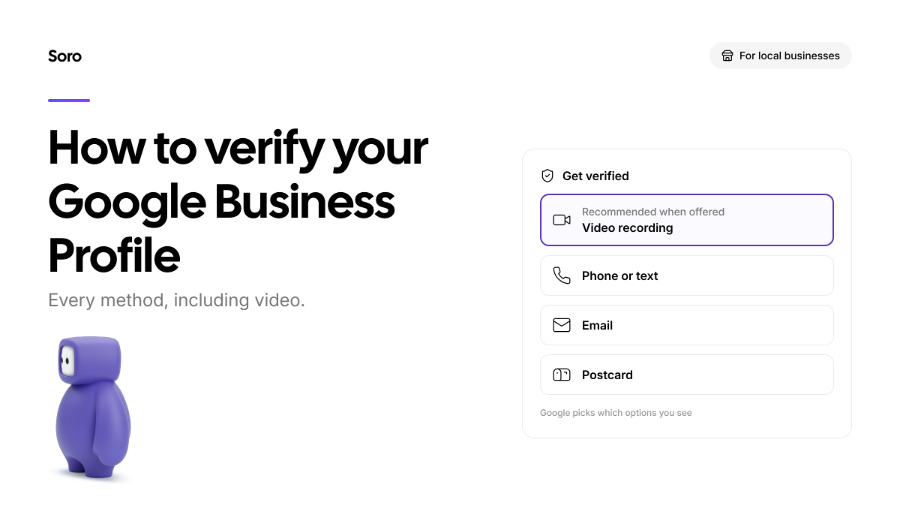
Google Business Profile verification is how you prove to Google that you’re the true owner/manager of the business. Until you’re verified, you aren’t able to edit hours, other details, reply to reviews, or access other valuable information. In Google’s words, when a business verifies, they “gain ownership of a Business Profile”, so it’s a must-do if you want to rank well. Our guide will cover the key steps, starting with an overview of every verification method. We’ll also thoroughly explain the highly coveted video verification and what to do if something fails.
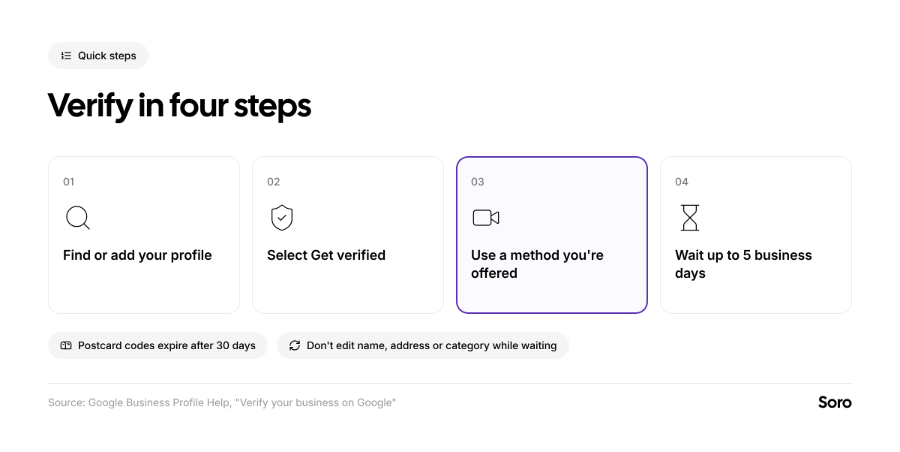
How to Verify Your Google Business Profile in 4 Steps
- Find Your Profile. Sign in to the Google account you want to use. Then search for your business name + city or write “My Business”. If your business isn’t on Google yet, add it. If it’s there but unclaimed, do that.
- Select ‘Get Verified’. You’ll see the button on your profile, so click it.
- Use a Method You’re Offered. Google selects the options for you. How they put it: “Verification methods are automatically determined by Google and can’t be changed”. They depend on the business type, public info, and even regions & hours. Sometimes businesses will need more than one.
- Complete and Wait for the Review. Once you send it, Google will check what you sent. That takes up to 5 business days. You’ll receive a confirmation email once everything clears.
Google My Business Verification Methods
Since Google My Business is now called Google Business Profile, some people might think the two are different. They’re not. Renaming didn’t change how the verification options work. The table below goes into a bit more detail on every one of the five options that might be presented to you:
| Method | How it Works | Good to Know |
|---|---|---|
| Video recording | Record a short clip (30 s) of your business on your phone and upload it from your profile. | Google recommends it if you're eligible. |
| Phone or text | Google calls or texts a code to your business number. | Automated phone menus can't receive the code. Only real numbers work. |
| Google emails the address shown on the verification screen. | Make sure you can open that inbox. | |
| Live video call | A Google support rep checks your business with you on a short video call. | Only during your listed business hours. |
| Postcard | Google mails a postcard with a 5-digit code to your address. | Most codes arrive within 14 days and expire after 30. Long-wait, but simple. |
With a few methods, some businesses might get verified almost instantly. The best example of this is with a website that’s already verified in Google Search Console, or if you use bulk verification for multiple locations.
Google is seemingly testing another option. In September of 2026, Search Engine Roundtable reported a "Submit a business photo" option on some verification screens as the image below shows.
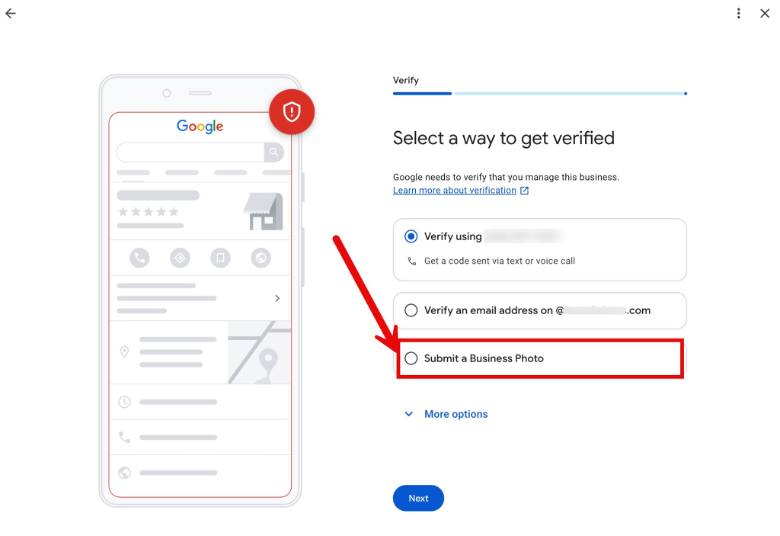
This method will ask for a signage pic, and the full storefront. Google hasn’t documented it at the time of writing, so don’t consider this a full-fledged verification method just yet.
How Google Business Profile Video Verification Works
This is the recommended method. Google Business Profile video verification asks you to film your business. A genuine unedited video helps Google confirm everything’s real and that you manage it. The rules for it are strict, so make sure to get familiar with how everything works before submitting to avoid re-do’s:
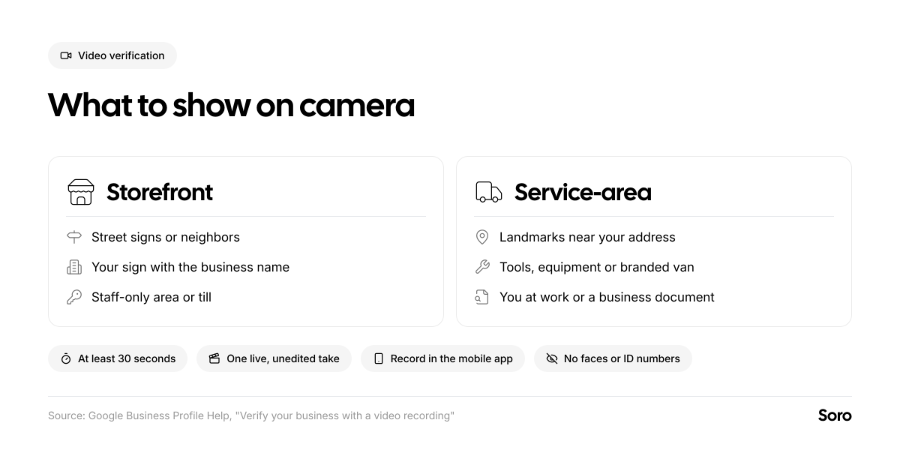
- One Live Take. “Unedited, unique, complete recording with no breaks”. It must be 30 seconds or longer, recorded and uploaded from a mobile device while connected to your Business Profile. You can’t upload pre-recorded clips.
- Show Three Things. Make sure the video captures the real location, proof the business exists and the proof that you manage it.
- Leave Out Private Details. Google doesn’t need your tax, bank or ID numbers, anyone’s private info and faces of other people.
What to Film?
This depends on your business type. If you’re a storefront, show street signs or nearby businesses. A permanent sign with the same name as your profile works, along with something only staff can access, like a register, storeroom, or backroom facilities.
If you’re a service-area business (e.g., plumber, roofer, electrician, etc.), show landmarks near your address, equipment, or a branded vehicle. You also need proof of management, like a business document with a matching name.
Submitting the Video
If you want to submit a video, open your profile on your phone first. Then tap ‘Get Verified’ and ‘Business Video’ next. Read the requirements again and record. Watch it back before uploading. If Google decides to reject it, you’ll see explicit review issues with reasons, like “Business name not visible on storefront”. If that’s the case, record a new video that includes everything from the previous one plus what was missing before.
How to Verify My Business on Google Without a Postcard
There was a time when postcards were the main way to verify. Nowadays, they aren’t offered to every business, and fewer and fewer owners see this option. If you’re wondering how to verify my business on Google without a postcard, there’s a simple answer: just use whatever else your situation offers.
You can upload a video, get a phone call or text, email, or a live video call. Google suggests trying all the options that are listed as available. If none of them work, contact support.
In the case no method appears at all, check whether the business is eligible at all. For example, online-only businesses or lead generation companies can’t verify, according to the search giant.
Common Google Business Profile Verification Problems
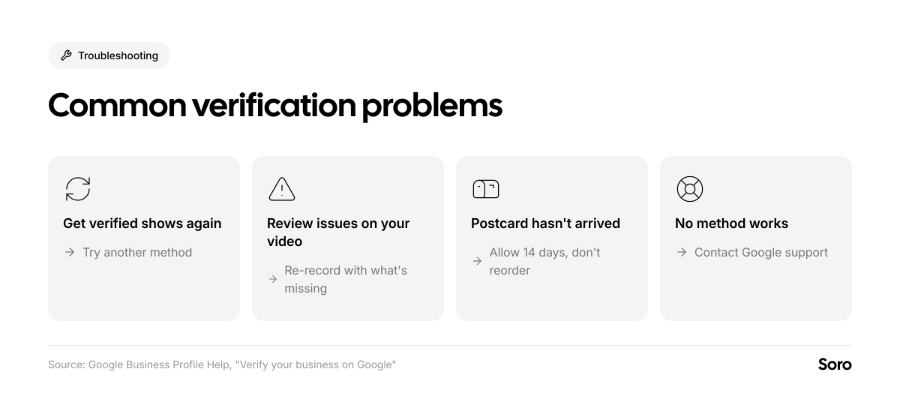
- The ‘Get Verified’ Button Comes Back. Means Google couldn’t fully verify you. Try another method if you have a choice, or try again.
- You Changed the Details While Waiting. Even a small edit to your name, address, or business category makes a mailed code obsolete. Requesting a new one cancels the one in transit.
- Google Asks You to Verify Again. This follows the aforementioned recent change to your details. Select ‘Get Verified’ again and go through with it without changing your details afterward.
- The Code Never Arrived. Make sure it’s not an automated menu that handles the phone.
If your profile is missing from search after you verify, our specific guide to “Why your business isn't showing up on Google” covers the usual causes. A suspended profile is a separate problem.
What to Do Once You're Verified
Verification gets your business listed, but that’s only the beginning. Completing the profile and making sure it looks active is the ongoing work that adds the most value. Here’s what deserves your attention:
- Fill In Every Section. Categories, services, hours, photos and a clear description of what you do. Our Google Business Profile optimization checklist walks through each one.
- Add People the Right Way. If you have a socials manager, add them as “Manager” instead of sharing your login.
- Ask for Reviews and Reply to Them. Replying needs a verified profile, so you can start now. See how to respond to Google reviews.
- Keep it Fresh. If things change or you have new images to share, deals to promote, post updates on your profile. We also have a guide to Google Business Profile posts with examples by trade.
Consistently posting and replying to reviews are two parts that matter, but are rarely handled hands-on by owners. If that's you, Soro Local is one option: it manages your Google Business Profile, automatically publishes posts, and replies to reviews for you.
Remember, your profile is only one half of being found locally. Once everything’s set up and running, take care of your website’s local and overall SEO. This will get more clients buzzing the phones or coming through the door.
Short Summary on Google Business Profile Verification
Verification is a must-do before getting started on local and website SEO. It delivers the foundation your business needs to rank better. First, claim your business on Google, then fill out every field and leave it as is before verifying. Make sure to follow the requirements for verification exactly, especially if you’re doing a video. Finally, if you run into any issues, retry the process, avoiding the issues that Google will list as the cause for rejection.
FAQ
How Long Does Google Business Profile Verification Take?
This depends on the verification method. Google claims the review process can last up to 5 business days after you complete the steps. Postcard codes rely on shipping times, but most should arrive within 14 days.
How to Verify My Business on Google Without a Postcard?
Choose another method from the ones Google offers. You can usually select either video, phone, text, or email verification. If nothing works, contact Google support.
What to Do After My Google Business Profile Gets Verified?
After verification, outline a plan for your SEO efforts. You’ll need to optimize your website, create content, and prepare to post regular updates. Most items are manageable without any professional help, with the right tools, of course.