
Your Google review link takes customers straight to the box where they can leave a star rating and share their experience about your business. Google now provides every Business Profile with its own link and a premade QR code, so the whole setup takes a few minutes at most. Reviews are also vital to good local SEO, so the link does double duty. While it’s especially important to businesses in competitive fields and areas, anyone can benefit from making it easy for happy customers to spread the good word.
In this blog, we’ll share how to get started in a few simple steps and explain what makes the link actually get used.
How to Find Your Google Review Link in 4 Steps
- Open Your Business Profile. Sign in to the Google account that manages your business and search for your business name.
- Select Read Reviews -> Get More Reviews. This is the wording from Google's own help page. In some views, the button could be ‘Ask for Reviews’, so look for both.
- Copy the Link. Once the review link is generated and copied to your clipboard, you can paste it into emails, texts, invoices, or even your website.
- Save the QR Code. On the same screen, look at the QR code, right-click it, and choose “Save Image As”. Google notes that review QR codes can only be generated on a computer browser.
If You Can’t Find the Right Button
While we won’t go into detailed Troubleshooting here, it’s still relevant to know what the most likely causes are.
For most business owners/administrators, it’s either being signed in to the wrong account when generating, using a phone (not a computer), or not finding the right action button. Look at the steps and info above and try it again. If it’s in vain, look at Google’s own help resources for proper guidance.
Before You Start Implementation: Tips on Shortening Your Google Review Link
People often wonder whether they need to shorten the existing Google Reviews link, and the answer is “Not usually.” The one Google provides is already short enough for pasting into messages, and you can also print a QR code. Running through a 3rd-party shortener adds extra dependency you don’t control.
The risk is somewhat real, too. Google itself shut down its own goo.gl shortener, and announced that those links "will no longer return a response after August 25th, 2025". So imagine that a short link, printed on hundreds of labels or receipts, stops working overnight if the service changes a small rule…
Our Tip: Set up a simple redirect on your website, such as Yourwebsite.com/review, which would point to the Google review link directly. If anything happens, there’s just one redirect to update.
How to Create a QR Code for Google Reviews
The simplest answer to how to create a QR code for Google reviews is to use the one Google makes for you (step 4 above).
It’s already aimed at the right target, and you don’t need a separate QR code generator or an account elsewhere. Still, if you prefer an external generator, any reputable tool will turn a link into a code almost instantly. Don’t rush with printing. Before you do that, check two things to see whether it’s actually scannable:
- Leave a White Border. Denso Wave (inventors of the QR code) say a QR code needs a 4-module-wide margin on all sides. A module is a single small black square that fills out the pattern. Don’t crop it tight, but most tools will handle this for you automatically.
- Print Big. Denso Wave also recommends printing to fill out as much of your available printing area as possible. On a counter sign, the code should be noticeable or possibly even the biggest thing on it.
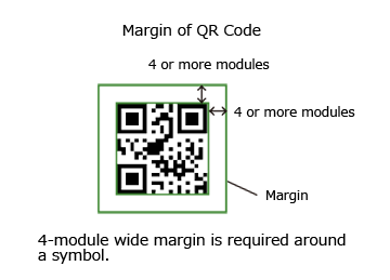
Image source: Denso Wave — QR Code.com, "Margin of QR Code"
The generous creator also shares plenty of other tips to help with usage. For example, the code’s complexity correlates with the length of the link. So, shorter links make simpler codes. The smallest version is a 21x21 grid, while the largest one can expand to 177x177.
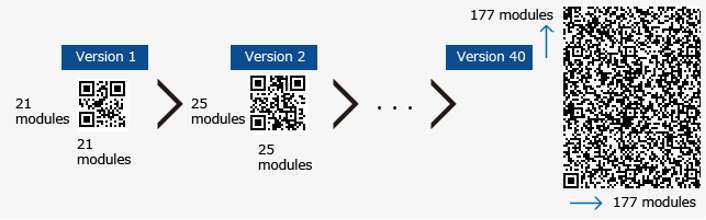
Image source: Denso Wave — QR Code.com, "Information capacity and versions"
The final part is testing. Scan the printed code with two different phones, preferably from about an arm’s length away, before printing a full batch.
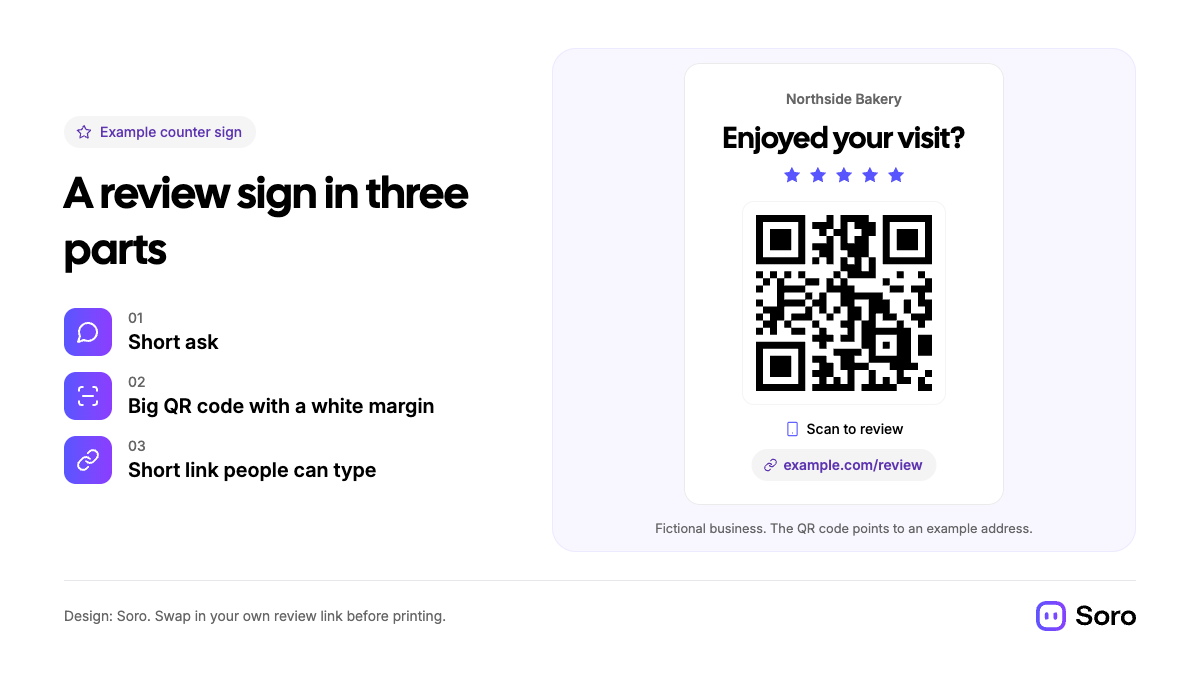
Where to Put Your Google Review Link and QR Code
This is a very good topic to focus on. It’s not just how you ask for Google reviews, it’s also important where you do it. Google’s own suggestions are a good starting point: on receipts, in thank-you emails, at the end of a chat conversation, and printed in your store. In practice, the best spot is wherever the customer already is at the moment they're happiest.
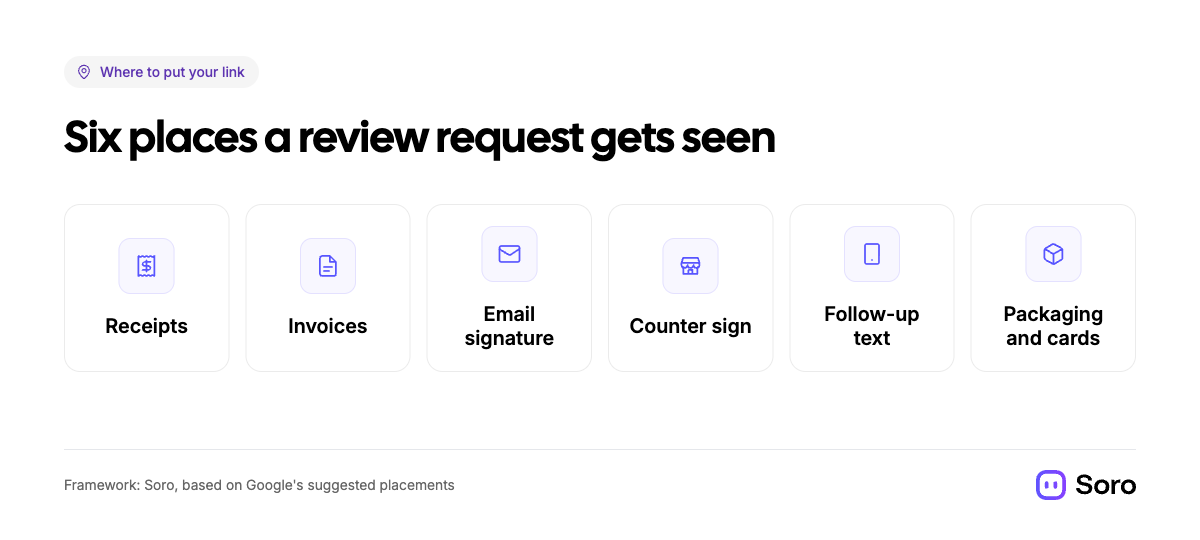
If you’re a service business and meet customers at the counter, a follow-up text and email will do most of that work. Send it on the same day the job’s finished, while the experience is still fresh. It’s one of the cheapest ways to get more clients without paid ads, because every new review helps attract new potential customers.
How to Ask for Google Reviews Without Breaking the Rules
Asking is normal and allowed, but Google is strict about what it calls soliciting and encouraging content that doesn't reflect a genuine experience. You must ask for reviews without offering incentives.
If you’re shy or think that’s too much of a nuisance for the customer – don’t. BrightLocal's 2026 survey showed that a whopping 78% of consumers had been asked to write a review for a business in the past 12 months. Whether you’re an electrician, a beauty salon, or a photocopy place – it all works the same.
However, as we mentioned, it’s important to know how to ask and what not to do when inquiring about a potential review. Here’s the list of what you can’t do:
- Offer Anything in Return. Discounts, free goods or services, as well as payments in exchange for a review are banned. That’s called Fake Engagement.
- Only Ask Happy Customers. Google prohibits the solicitation of solely positive reviews or discouraging negative ones. Everyone should get the same opportunity to share their experiences.
- Pressure People on the Spot. You shouldn’t pressure or heavily nudge people towards leaving ratings or reviews while they’re on the premises. Signs on the counter are fine, but standing over a person while they’re typing is not.
- Setting Up a Review Station. Such areas for review solicitation in your place of business are against Google’s policies.
- Give Staff Review Quotas. Asking employees to collect a set number of reviews is also on the prohibited list.
We’ll share an example of a suitable message to send along with your QR code for Google reviews, or a standalone review link.
“Thanks for choosing our service today. If you have a minute, we’d really value your review and suggestions on Google: [your link].”
Send the same message to every customer, regardless of whether it’s a good or bad day. This is one of the easiest habits to start with, as we already outlined in our guide on how to market a small business with zero experience.
After the Reviews Come In
Getting your first reviews feels nice, but it’s only half the job. The other part is responding and reacting. Each review, positive or negative, deserves an individual reply. Google notes that replies indicate a business genuinely values consumer feedback. Plus, reviews count towards a profile’s prominence, an important item in our Google Business Profile optimization checklist.
If you hardly find the time to scroll past and respond to reviews, Soro Local is built to automatically reply to reviews on Google Business Profile, alongside automating a handful of other tasks.
Further Reading:
- How to Respond to Google Reviews – for writing reviews yourself
FAQ
Where Do I Find My Google Review Link?
In your Google Business Profile. Search your business name on Google while signed in to the managing account. Then click on ‘Read Reviews’, and then ‘Get More Reviews’ or ‘Ask for Reviews’ and Copy.
How Do I Make a QR Code that Opens My Google Review Page?
The best way to get a QR code for Google Reviews is to use Google’s built-in tool. On a computer browser, log in to the business owner account, open the ‘Get More Reviews’ screen, right-click on the QR code, and save the image. Remember – you can’t generate QR codes on mobile.
What’s the Best Place to Put a Review QR Code?
Where customers already look at the moment they’re happiest. You can put it on receipts, invoices, check-out desks, and in thank-you emails. If it’s printed, make sure the dimensions are readable for cameras, with a margin around the code itself. Also test before printing in bulk.