
You’ve checked Google and your store isn’t there – or it’s buried on page 3, behind tens of competitors and a forum thread from 6 years ago. That’s usually the turning point, when an e-shop owner starts searching for Shopify SEO tips. In this moment, people are still half or fully convinced that fixes require a professional developer or a budget they don’t have.
Truth be told, it mostly doesn’t. Shopify already handles a surprisingly large share of the tech stuff automatically, including sitemaps, mobile-responsive themes, basic product schema, and so on. What’s left in Shopify SEO? Mostly fields you can fill in yourself. This guide will walk you through what to change today, roughly ranked by order of impact. It’s Shopify-specific, so for a broader e-commerce SEO picture, read the more general guide.
Shopify SEO Tips That Don't Need a Developer
Before we do anything specific, let’s separate what you need to cover from what’s already taken care of.
Every current Shopify theme is responsive by default, so you don’t need massive design changes to start. Most themes also output basic product schema and a working robots.txt.
What’s left blank (on purpose) is the layer above – what the actual words in the titles and descriptions, alt text sections, and URLs are. Only you can say what you’re selling and know who’s searching for it. That’s the part that needs the human touch. Most manual fixes will happen inside the Shopify Admin panel.
Fix Your Title Tags and Meta Descriptions First
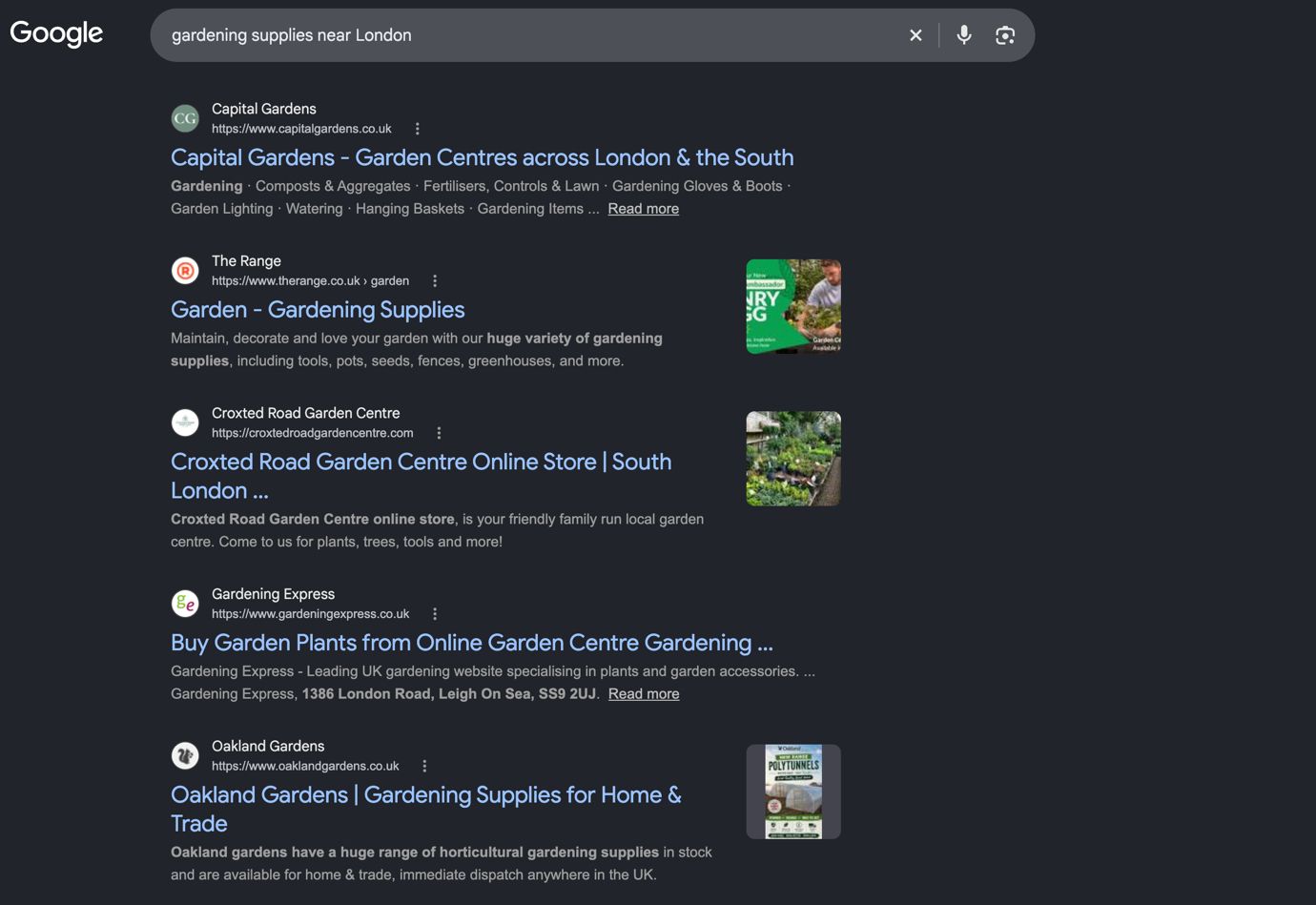
Whether you’re selling pet shampoos from Florida, gardening gear around London, or anything in between, this is the highest-leverage, lowest-effort fix.
Your title tag is the blue clickable headline in Google’s results. Your meta description is the sentence(s) underneath it. Shopify won’t write these for you; it can just reuse your product or page title, which isn’t proper optimization.
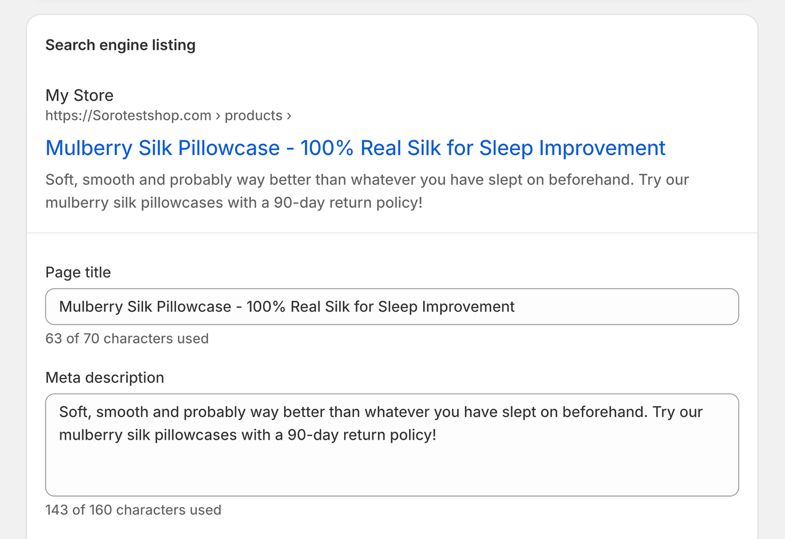
How to Edit Metadata on Shopify
- Open a product, collection, or page through the Admin
- Scroll to ‘Search Engine Listing’
- Click ‘Edit Website SEO’
- Fill in the ‘Page title’ and ‘Description’ Fields.
One small addition – for your homepage, it’s in a different place (Online Store -> Preferences).
Shopify Metadata Recommendations
- Shopify cuts off titles past 70 characters and descriptions past 320, but both are too long
- Google typically displays up to 60 characters for titles and 150–160 characters (roughly 920 pixels) on desktop for the description, and ~120 characters (roughly 680 pixels) on mobile, so aim to stay inside these tighter numbers
- Your page’s main keyword should be near the front of the Meta Title
- The Meta Description is best off as a one- or two-sentence pitch, not a keyword list
- Start from your homepage and best-sellers.
If you’re keen to know what metadata actually does for your rankings, our team has published a think piece on its role in your SEO.
Write Alt Text for Every Product Image
Right now, Google can’t see or understand your product photos the way a human does. So, a photo with no alt text is just blank space for a search engine. Alt text is a short text description that explains what’s inside an image.
Nowadays, alt text matters more because not just search, but also AI answer engines lean on it to understand what’s being shown.
To add it: click any image on a product page and select Add Alt Text.
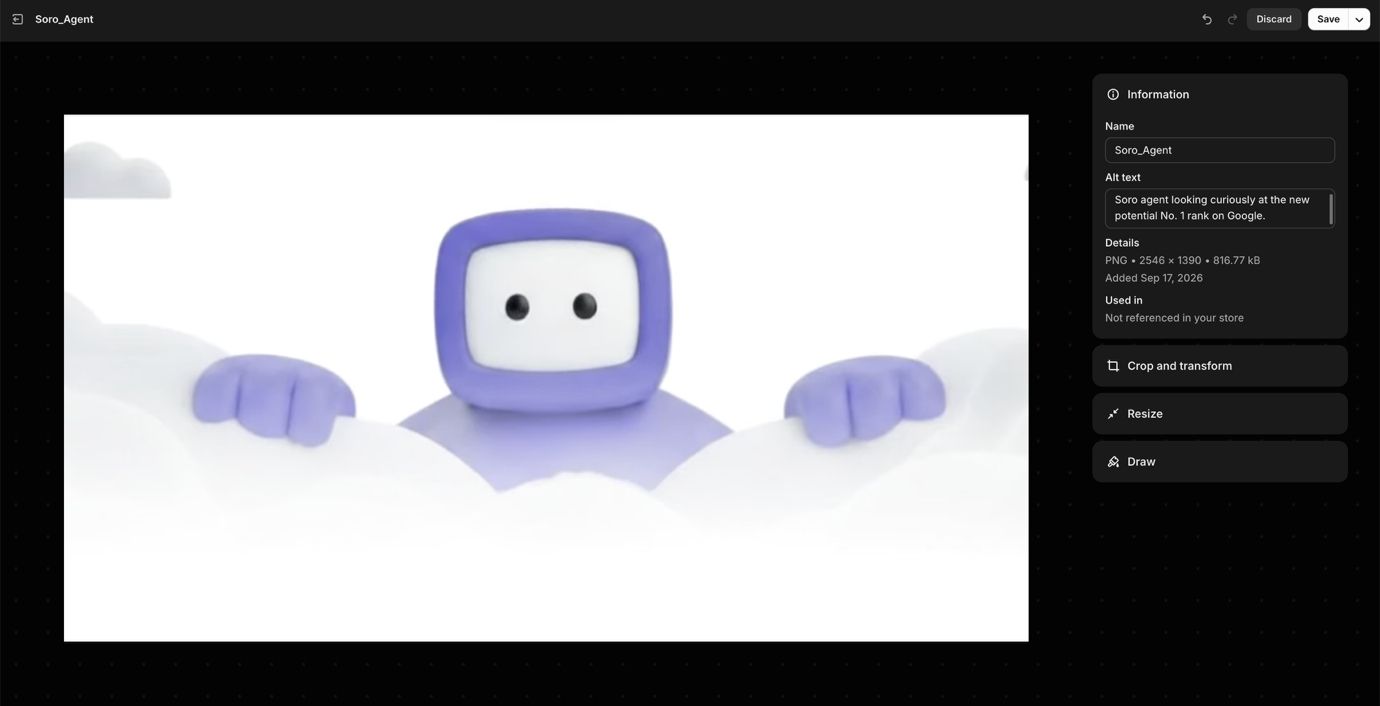
Our Shopify SEO tips for alt text are:
- Skip the generic stuff
- Describe what’s in the frame (e.g., material, color, shape, etc.)
- Don’t overdo keywords, and keep it <125 characters
A good example would be something along the lines of: Silicone, burgundy, stylish iPhone 17 case with abstract artwork and a color accent for the camera cutout.
Clean Up Product URLs & Handles
When you create a product, Shopify will auto-generate a URL (called the “handle” here) from your product title. Left alone, it isn’t great, since a product like “Men's Classic Fit Oxford Shirt — Limited Batch #4, Blue” turns into a URL nobody would ever type or share.
You can edit the handle in the same Search engine listing panel as the Meta Title and Meta Description we covered above. Most SEO for Shopify tips would suggest doing the following for URL’s:
- Keeping things short
- Dropping filler words
- Using lowercase for every word
- Separating words with “-“
Solid example: YourShop.com/products/blue-mens-designer-shirt-linen
One caution: once a page is live for some time, indexed, and getting traffic, changing its URL breaks the link, and Google will need some time to recrawl.
Duplicate Content: What Shopify Already Handles, and What to Check
Shopify stores generate the same product under more than one URL – reachable through its own product page, and the collection it’s filed with. To a shopper, that’s invisible, but to Google it seems like several different pages, competing for the same ranking.
The good news is that Shopify automatically adds the canonical tag pointing back to the real URL. It runs by default and does the work for you. If you want more detail, Ahrefs has an article on this.
Before proceeding, still check things with Search Console’s URL inspection tool. Paste in any relevant product URL and compare "User-declared canonical" against "Google-selected canonical”. If they match – leave it as is, but if they don’t – we cover what to do in the passage “Shopify SEO Problems That Do Need a Developer”.
Add Schema Markup
Schema markup turns plain blue text into an interactive listing with stars, prices, and stock status attached, called Rich results.
Google’s own case studies explain why it’s beneficial. Rotten Tomatoes measured a 25% higher click-through rate across 100,000 pages after adding structured data, and Nestlé recorded an 82% jump on pages that displayed as rich results.
Still, it’s a directional guide rather than a guarantee. Most Shopify themes generate a basic product schema automatically, so there isn’t anything to fix.
Use Google’s own Rich Results test to see if it works as intended. Paste the URL and test it.
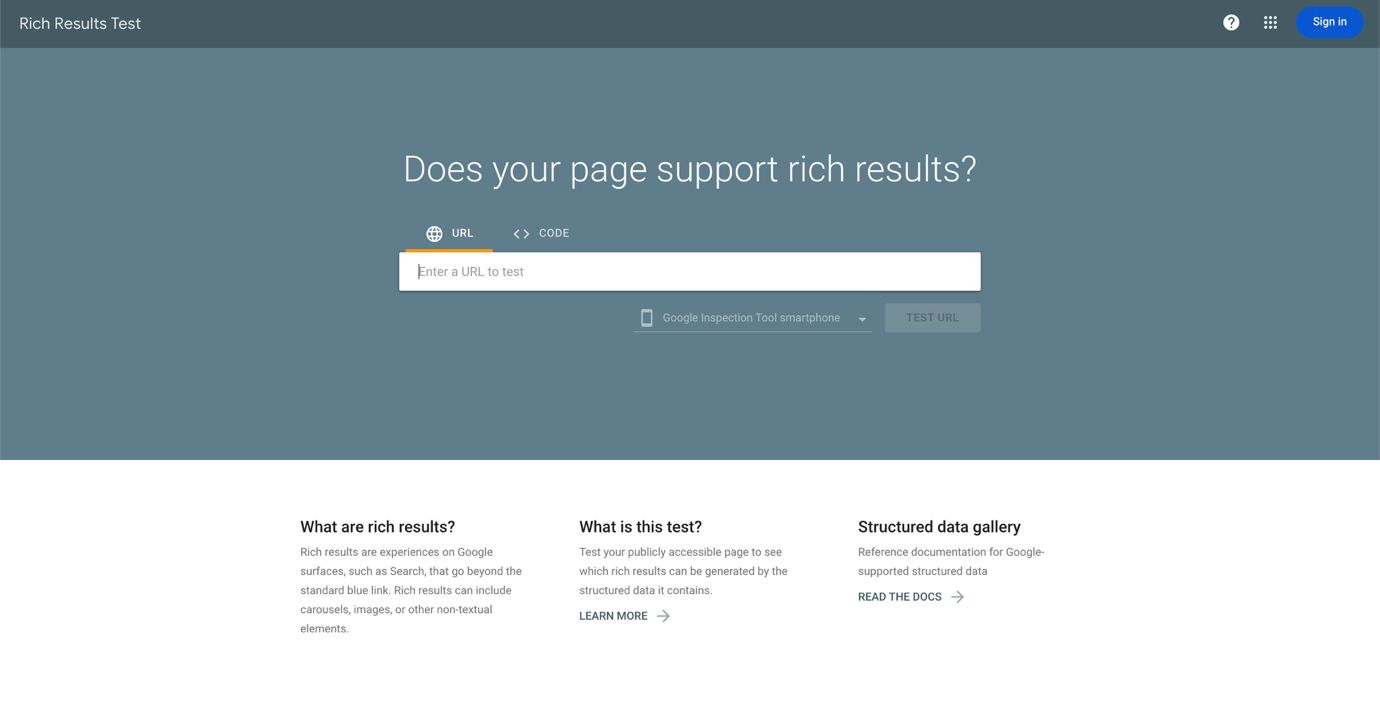
If it isn’t working well, an app fills that gap.
Submit Your Sitemap (It’s Already Built)
This one is very easy, but some stores never do it. You can find your own sitemap under yourstore.com/sitemap.xml. Shopify auto-updates it whenever you publish new products or unpublish something.
All that’s left is telling Google that it exists. Add your store as a property in Google Search Console and submit the sitemap under ‘Sitemaps’ in the left menu.
Check Your Speed Before Blaming Content
Slow stores lose customers before they even start thinking about a purchase. Luckily, you can check site speed with free tools like Google's PageSpeed Insights.
If it shows issues, the most common cause is apps. Look for ones you don’t use daily and uninstall them to see the number improve. No code required.
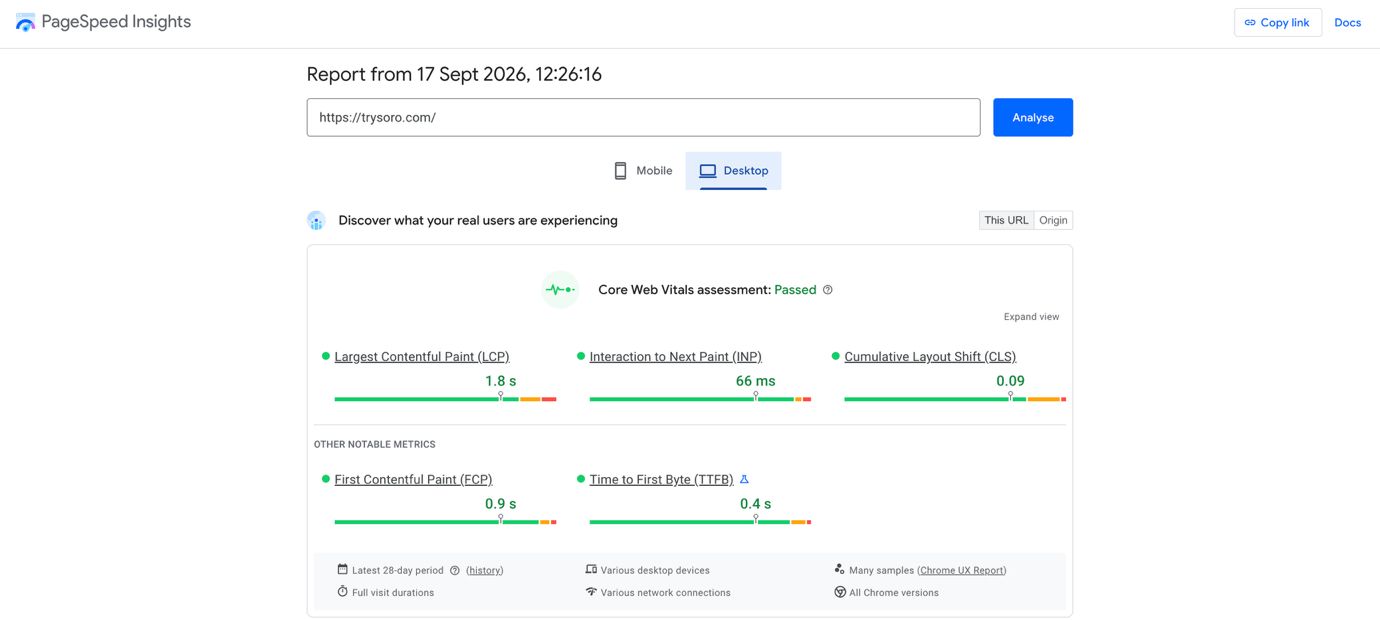
Shopify also has a simple 0-100 score tracker for e-shop speeds that you can find through Analytics > Reports > Online Store Speed.
Publish Content on a Schedule
Blogging is still relevant and works for ecommerce SEO. The targets for publishing are mainly questions and queries that your product page was never meant to answer. Think:
- How Much Does X Cost
- Buying Guide for X
- Comparison Between X and Y Products
Even if you don’t use topic research tools, you can still take advantage of the questions customers ask you via email or chat to get to know what’s worth writing about. This is a large part of good Shopify SEO.
Shopify's built-in Magic tool can turn a few keywords into a draft post in seconds, right inside the admin. While it’s a nice tool to start, it doesn’t solve the main problem – doing the same thing again next week, and the week after. Once supplier problems or shipping delays eat your time, blogging becomes an afterthought.
If that's a pattern you recognize, Soro is one option built around exactly that gap, automating content research, writing, and publishing from one place. You can integrate it with your Shopify store, but Shopify Magic plus a recurring reminder works fine too.
Shopify SEO Problems That Will Need a Developer
Being upfront and honest cuts both ways. While you don’t need a dev for a lot of things, a few aspects still require pro-level input. Pretending otherwise would just waste time. So, what are our Shopify SEO tips for when it’s a must to call someone in the know?
- Custom robots.txt rules. The default file works for most stores, but customizing it means adding a robots.txt.liquid file through the editor. Shopify is explicit in claiming this is unsupported, so you must connect a Shopify Partner or a dedicated agency/freelancer.
- Internal links pointing at the wrong URL. The canonical tag we mentioned earlier for duplicate content stops Google from indexing it incorrectly. Still, it can’t stop your own theme from linking to the collection-path version internally. That miss can waste crawling resources, and you don’t get the best SEO gains. Fixing it is, once again, a Liquid change that’s best off handed over to someone in the industry. Read more about internal links on our blog to get a sense of why they’re so important.
- Speed problems baked into your theme’s code. If the slow speed score persists even after removing the apps, it may be the fault of some heavy custom code. Only someone who can read it can fix it.
Where to Start This Week?
If today is the only time you have, do these three first:
- (Re)write the title tags and descriptions on your homepage and 5-10 best-selling products.
- Add alt text to images of all those same products.
- Submit your sitemap to Google’s Search Console.
That should take you 60-90 minutes. None of it requires touching code or anything super computer-savvy. Hence, Shopify SEO is never about just one big fix – it’s a short list of small ones. If you do it consistently, like with the Shopify SEO tips for blog posting that we’ve talked about, you should be on the right track.
FAQ
Do I Need a Developer to Improve SEO on Shopify?
For most stores, no. You can handle things like: Meta Titles, Meta Descriptions, alt text, URL handles and sitemap submission from the Shopify admin and Google Search Console. A dev is only recommended for specific, custom fixes like robots.txt rules or theme-level adjustments.
What are the Most Important Shopify SEO Tips to Start With?
We recommend starting with title tags and meta descriptions on your homepage and 5-10 best-selling products and collections. Then add alt text to images and submit the sitemap to Google’s Search Console. That should take under 2 hours and needs no code.
How Long do Shopify SEO Changes Take to Show Results?
It depends on Google’s recrawl speed. Some changes could take effect in a few hours, while some could need months. Fixes for titles and alt text can show up within days or weeks, while new blog content takes longer to rank. For realistic timelines, see ‘How Long Does SEO Take?’